On this page
Requesting a refund from the account center
License keys and cloud traffic packs bought on alithon.com with WeChat Pay or PayPal can be refunded from the account center when they qualify. No email is needed. There are three steps:
- You ask. Dashboard > Orders, Request refund on the order, pick a reason, submit.
- We review. We normally answer within five business days. Until we do, you can withdraw the request.
- The money goes back the way it came. Once approved, the payment is returned to the WeChat Pay or PayPal account that paid, and the order's license keys are disabled when the refund completes.
Whether an order can be refunded is decided by the Refund Policy. This page covers how to ask and what you see at each step.
Purchases made in the Mac App Store, including SPU Pro subscriptions, are sold and billed by Apple, and we cannot refund them. Ask Apple at reportaproblem.apple.com.
Which orders qualify
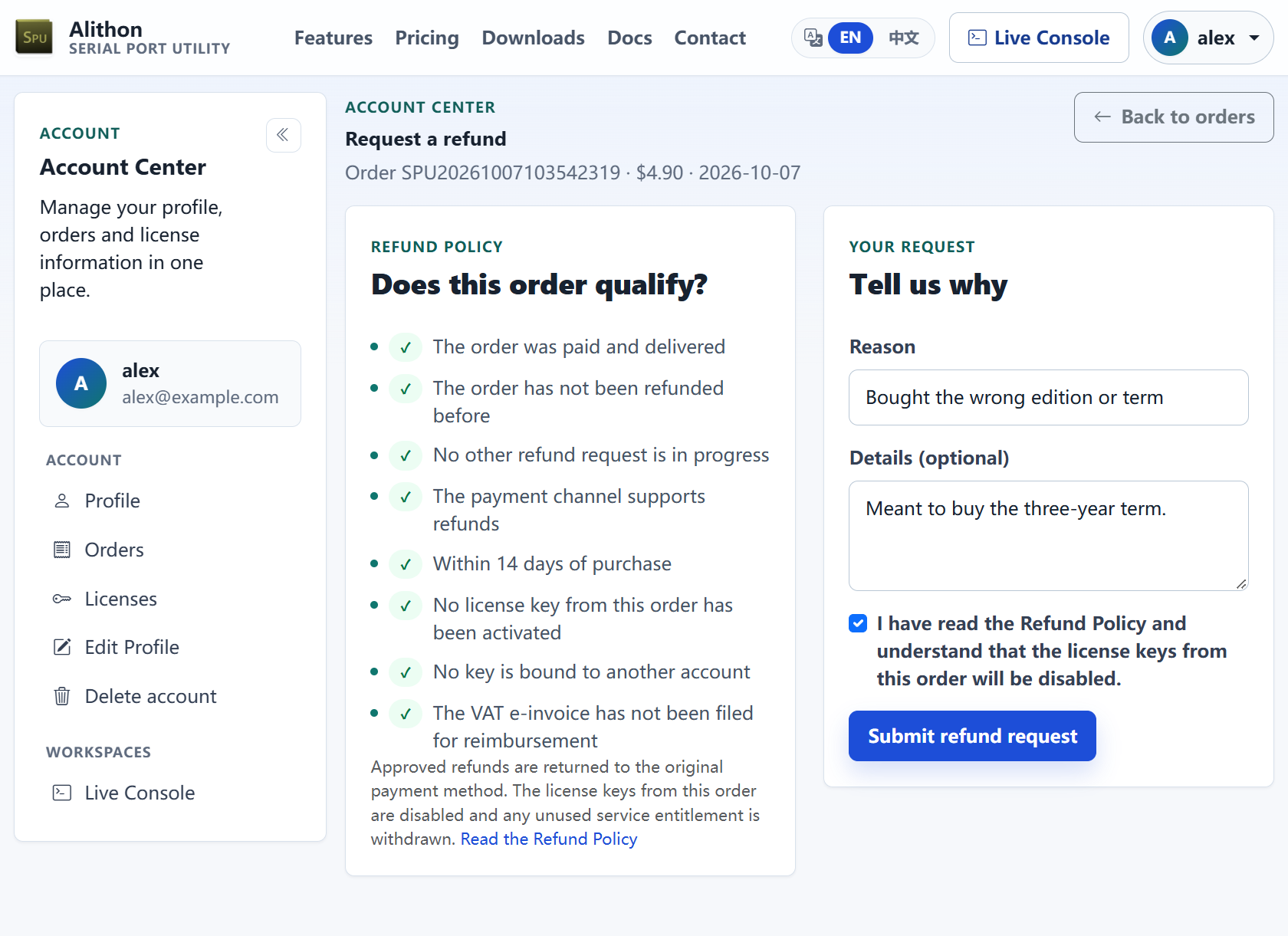
The Request refund button appears only on an order that passes every check. The request page lists the same checks on its left side: a tick is a pass, and a cross is the reason the order cannot be refunded through self-service.
| Check on the page | What it means |
|---|---|
| The order was paid and delivered | Payment is confirmed and the key has been sent. A pending or cancelled order has nothing to refund. |
| The order has not been refunded before | An order is refunded once. |
| No other refund request is in progress | You cannot submit a second request while one is being reviewed or processed. |
| The payment channel supports refunds | WeChat Pay and PayPal orders go back to the original payment method. |
| Within 14 days of purchase | 14 calendar days, counted from the payment time. |
| No license key from this order has been activated | If any key in the order has been activated, or used to generate an offline activation code, the order no longer qualifies. |
| No key is bound to another account | A key bound to your own account is fine. One bound to somebody else's account is not. |
| The traffic pack has not been used | Traffic pack orders only: the whole pack is still in your purchased traffic balance. |
| The VAT e-invoice has not been filed for reimbursement | An order with an issued invoice needs your statement that it has not been reimbursed. |
Three things that are easy to miss:
- A refund covers the whole order. An order for several keys is refunded in full or not at all, and one activated key takes the whole order out of self-service.
- Orders follow the checkout email. The account center lists the orders whose checkout email matches your account's email. If you had no account when you bought, register with that same address and the order appears.
- Refund first, delete the account second. Deleting an account forfeits its traffic balance and ends self-service. The delete page warns you while an order can still be refunded.
Submitting a request
Find the order
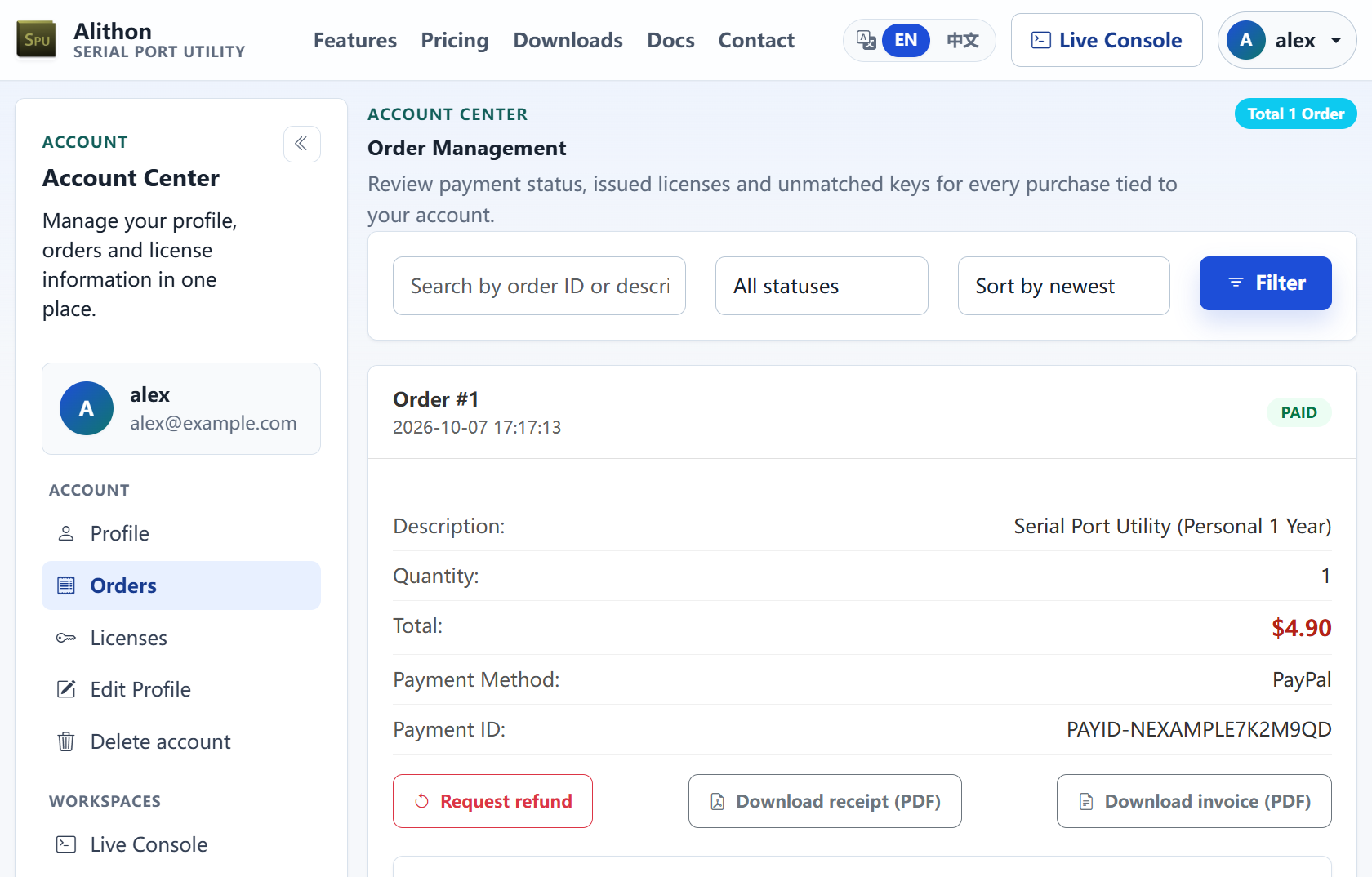
- Sign in at the top right of the site and open Dashboard > Orders.
- Find the order. One that qualifies has a red-outlined Request refund button under its details, to the left of Download receipt. No button means the order failed a check; see When there is no Request refund button.
Fill it in and submit
- Click Request refund. On the request page, Does this order qualify? on the left is the checklist from the previous section, and Tell us why on the right is what you fill in:
- Reason: No longer needed, Bought the wrong edition or term, Duplicate or incorrect charge, Product defect, Order was not delivered, or Other. Pick the closest one.
- Details (optional): up to 500 characters. For a wrong purchase, say what you meant to buy; for a defect, describe the symptom and give the version. This shortens the review considerably.
- An order with an issued VAT e-invoice shows one more required box, confirming the invoice has not been reimbursed.
- Tick I have read the Refund Policy and understand that the license keys from this order will be disabled.
- Click Submit refund request. You return to the order list with a message at the top: "Refund request R… submitted. We normally answer within five business days." The string starting with R is the refund number; quote it if you write to us.
To change edition or term, refund this order and then place a new one from the pricing page. Nothing is exchanged automatically.
Following the request and withdrawing it
After you submit, the order's details gain a Refund row with the current status and the refund number. You do not need to keep checking: we email the checkout address when there is a result.
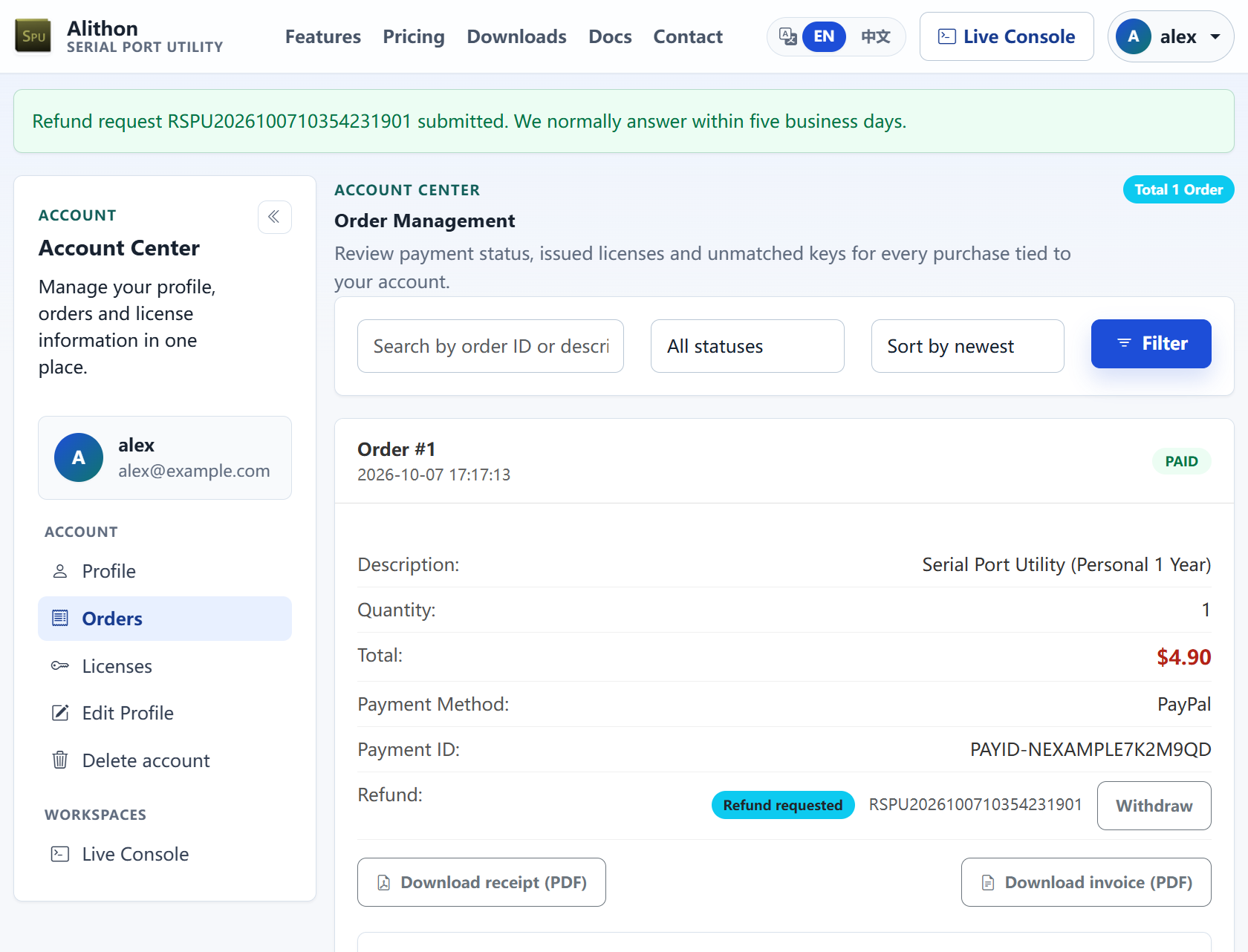
- Refund requested: received and waiting for review. Wait for the email, or click Withdraw if you change your mind.
- Refund approved: approved, and the refund is being sent. There is nothing for you to do; it normally moves on quickly.
- Refund in progress: sent to WeChat Pay or PayPal and waiting for their confirmation. Again, nothing for you to do.
- Refunded: the money has been returned, and the order itself now reads Refunded. Watch for the credit; see After the refund.
- Refund failed: the payment channel did not complete the refund. Do not submit again; we see the failure and retry. If it still says this after a business day or two, contact us with the refund number.
- Refund declined: the review did not approve it, and a reason we wrote is shown beside it. If you believe it is a mistake, write to bill@alithon.com with the order number.
- Refund request withdrawn: you withdrew the request. You can ask again while the order is inside the 14 days and still qualifies.
Withdraw works only while the status is Refund requested. Once a request is approved the money is already on its way back, and it cannot be withdrawn.
Emails go to the checkout address: one when the refund has been issued (the amount, the refund number and the payment method it returned to), or one when it is declined (with the reason). Submitting a request does not send an email; the message at the top of the page and the Refund row are the acknowledgement.
After the refund
- When the money arrives: it returns to the original WeChat Pay or PayPal payment. After we show Refunded, your bank or payment provider may need a few business days to post the credit.
- Keys are disabled: the license keys from the order can no longer be activated, and they are released from the account they were bound to.
- The application reverts to Free: a computer activated with one of those keys goes back to Free the next time it connects to our servers. Free has no time limit and local serial debugging keeps working; see Free and Pro.
- Traffic packs: the refunded pack is taken out of your purchased traffic balance.
- Invoices: an issued VAT e-invoice is reversed by us; an invoice that was requested but not yet issued is simply cancelled.
Continuing to use the software on the same device after a refund is one of the abusive cases in Section 4 of the Refund Policy, and such devices may be restricted under the Terms of Service.
Orders with a VAT e-invoice
When a VAT e-invoice (fapiao) was issued for the order, a refund has to reverse it with a red, negative invoice. An invoice that has already been filed for reimbursement cannot be reversed, so that order cannot be refunded.
The request page shows the invoice number in the form and adds a required box: "I confirm this e-invoice has not been filed for reimbursement and may be reversed." The request cannot be submitted without it. An invoice that was only requested and has not been issued does not need this step.
When there is no Request refund button
No button means at least one check failed. Opening the request page directly gives the same answer: the crossed item in the list on the left is the reason, and the right side says "No request can be submitted for this order."
Most of these are cases the Refund Policy says are normally not refunded: a key that has been activated, more than 14 days since payment, traffic that has been used. The cases below, however, are reviewed by us outside self-service, so write to us even though there is no button:
- a duplicate or clearly incorrect charge;
- a paid order whose key was not delivered and cannot be delivered promptly;
- a reproducible, material defect that prevents the documented core function and could not be resolved through a reasonable support process;
- a purchase that applicable consumer law requires us to refund.
Write to bill@alithon.com or use the Contact page. Include the order number, the checkout email, the payment channel and the purchase date with a short explanation. Do not send card or bank account details.
Other reasons the button is missing:
- The order is not in the list: the account you are signed in to has a different email from the one used at checkout. Sign in with the checkout email's account, or register one with that address.
- The account has been deleted: self-service is no longer available; write to us as above.
- An App Store purchase: it is not among the account center's orders. Ask Apple.
- A key is bound to somebody else's account: read Licenses and your account, and contact us if it needs releasing.