On this page
On this page
Binding a license to your account
A license key and an Alithon account used to be two separate things. The key knew machine ids; the account knew your devices, orders and cloud traffic. Nothing connected them, so every new machine meant finding the delivery email again.
Binding connects them. Once a key belongs to your account, signing in to Serial Port Utility activates whatever computer you are on, and signing out releases it again. There is nothing to copy and nothing to type.
- At checkout: tick Bind the license to my Alithon account. It is on by default for Personal keys and off for Enterprise ones. The key is recorded against the email you enter on the order form — not necessarily the account you are signed in to, because that is where the key is delivered.
- If you have no account yet: the key waits for one. Register with that same address and it becomes yours automatically.
- If you already have a key: bind it from Dashboard > Licenses, or accept the prompt Serial Port Utility shows the first time you sign in on a machine that already has one installed.
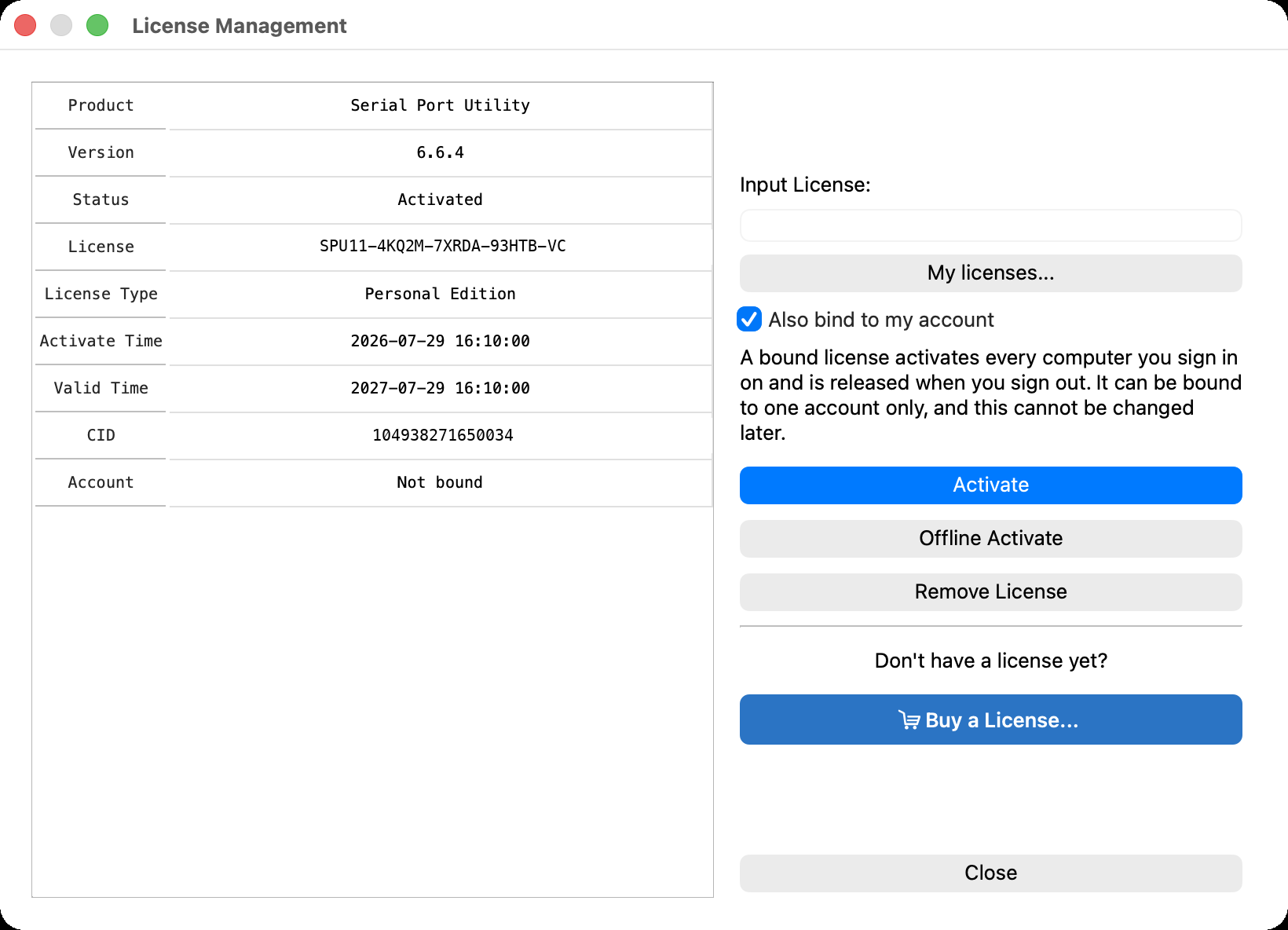
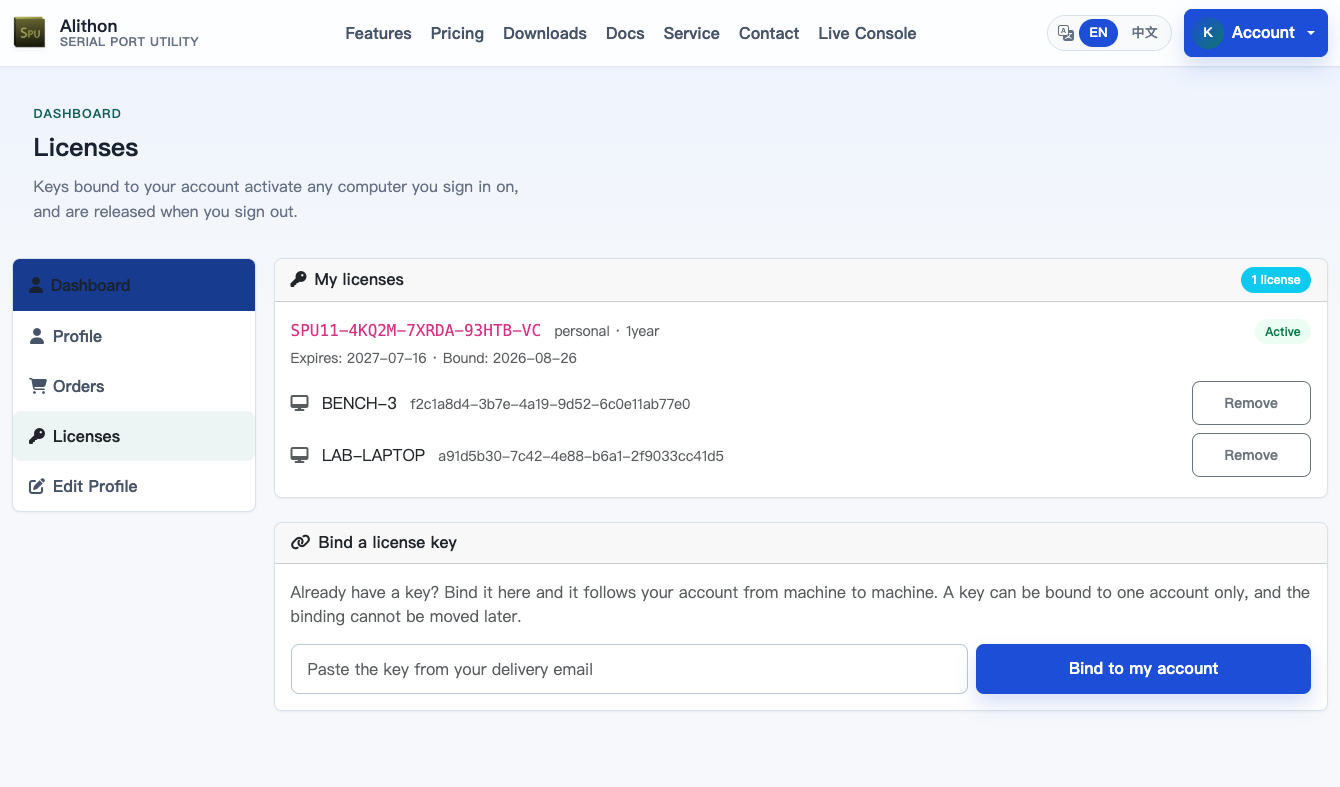
A key binds to one account, once
A binding cannot be moved to a second account afterwards. That is deliberate: if a key could drift between accounts, "sign out and lose your activation" would become a way to take somebody's license. Every place that offers binding says so first and asks you to confirm.
If a key ended up on the wrong account — an address typed wrong at checkout, an engineer who has left — contact support with the order number and the key, and we can release it. When an order is refunded, its keys are released and disabled automatically.
How many computers
A bound key has no device limit. It is live only where its owner is signed in, which is a better control than counting machines: use it on your desktop, your laptop and the bench PC, and sign out where you are finished.
An unbound key runs on up to three machines at once. This replaced the old "one activation plus three transfers" rule, which was spent forever — reinstall Windows four times and the license was finished. A concurrency limit gives the slot straight back: deactivate a machine from Dashboard > Licenses and the next one can take its place.
Enterprise keys are different again: they carry a seat count from the order, and that count is what limits them whether they are bound or not.
What signing out does
Signing out of Serial Port Utility on a machine releases a bound license there: the activation is removed locally and the machine is taken off the license. Signing back in puts it straight back.
An unbound key is untouched by signing out — it stays installed on that computer exactly as before.
A session that simply expires is not the same as signing out. If the app cannot renew your session, the license stays active and it asks you to sign in again.