On this page
Command library and sequences
The command library does two jobs. The dozen commands you type every day become buttons that send with one click. A fixed test flow — send, wait, check the reply — becomes a sequence that a colleague or a customer can run on site as you built it (Free limits how many runs and steps; see the end of this page), with a pass or fail verdict at the end.
The library belongs to the project, not to one connection: every connection shares the same commands and sequences, and a click goes to the focused connection — the one that last had the keyboard focus, or the page on show in the tabbed layout.
To open it:
- Tools → Command Library… edits commands and sequences;
- View → Command Panel shows the buttons on the right of the window. The panel starts hidden and opens by itself the first time you add commands.
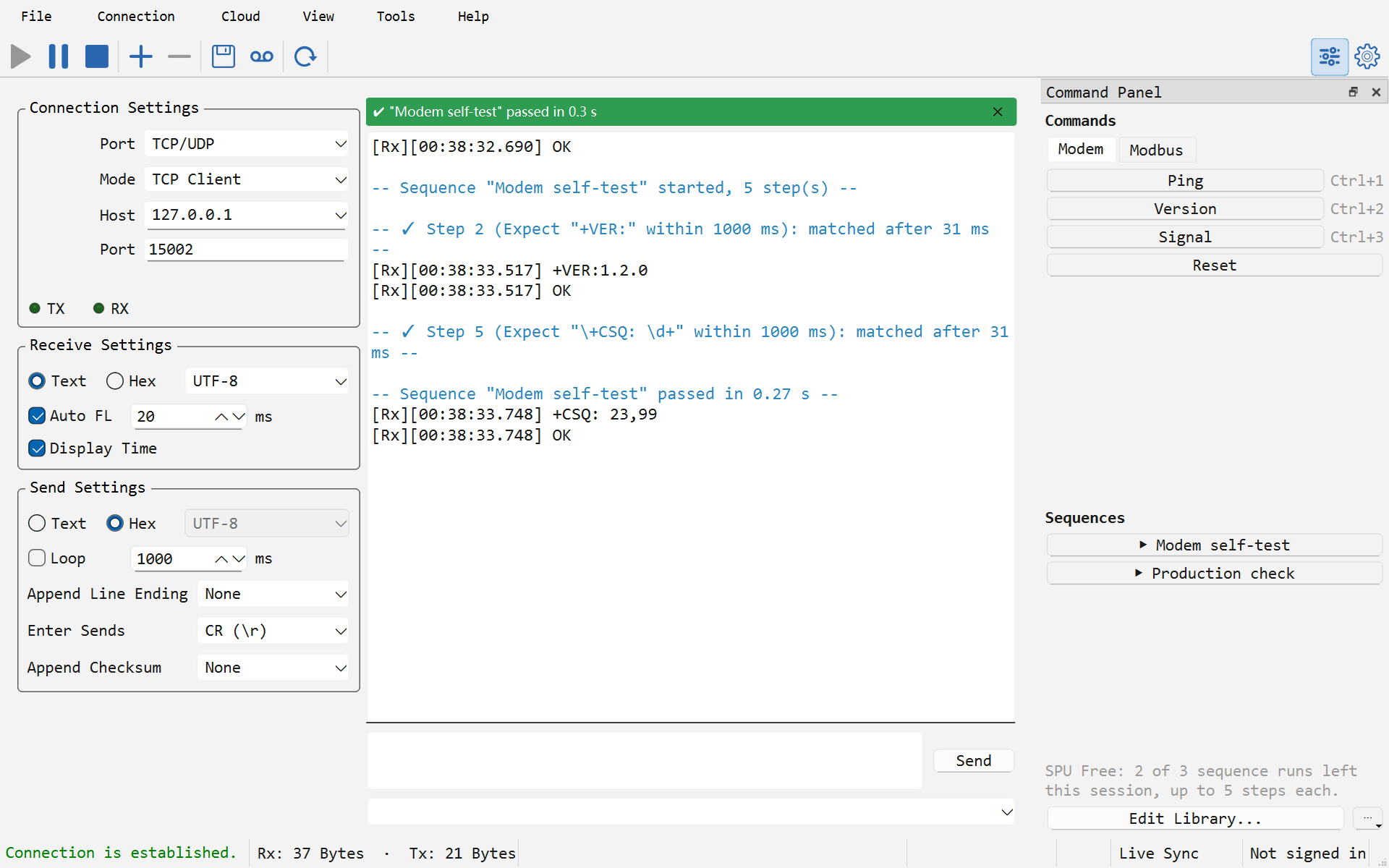
Command buttons
Add commands on the Commands page of the library. Each command has:
- Name: shown on the button; when empty, the button shows the start of the command.
- Format: Text or Hex. In text,
\r\n\tand\xHHstand for the bytes they name, whatever the send box's escape setting says — a saved command that reads\r\ncan only ever have meant those two control bytes. Hex is parsed strictly, two digits per byte, so a typo is an error rather than a silent00. - Line ending and Append checksum: set them per command, or choose "As the port's send settings" to use the focused connection's settings at the moment it sends. The line ending applies to text commands only; a hex command is exactly the bytes it lists, plus any checksum. A command with no text but a line ending is a bare Enter, which is what wakes many a console prompt.
- Shortcut: for example
Ctrl+1; pressed anywhere in the window, it sends the command to the focused connection. - Note: shown as the button's tool tip.
Under the editor, "On the focused port this sends N bytes" shows the exact bytes in hex, using that connection's encoding, line ending and checksum.
Commands can be grouped; each group is a tab on the panel. Right-click a button to Copy to Send Box and adjust it by hand, or to edit it. A click behaves exactly like Send: a closed connection is opened first, and a running file transfer refuses it with the reason. Commands do not enter the send history.
Sequences
A sequence is a list of steps run in order:
| Step | What it does |
|---|---|
| Send a command | Sends one command. You can copy one in from the library; the step keeps its own copy, so the sequence still works after it is handed over |
| Wait | Pauses for a number of milliseconds |
| Expect a reply | Waits for matching data within a time limit; with "No limit" it waits until it matches or you stop it |
| Label | Names a place for a Repeat step further down to go back to |
| Repeat | Goes back to a label (or the start) so the steps in between run N times in all, or until stopped |
Click a sequence on the command panel to run it on the focused connection; while it runs, both the panel and the strip above the receive view have a Stop button. One connection runs one sequence at a time; different connections can each run their own.
Before its first byte goes out, the whole sequence is checked: every command must encode in the connection's settings, every Expect pattern must be valid, every Repeat must go back to a label above it, and the steps it repeats must send, wait or expect something (otherwise it would spin). If anything is wrong, the step is named and nothing is sent. The check shown under the Steps table in the library editor is the same one a run performs.
How Expect matches
The match modes are the ones auto reply uses: Text (with \r \n \t \xHH), Hex (?? matches any byte, as in 01 03 02 ?? ??), Wildcard (* for any run of bytes, ? for one) and Regular expression.
Two rules decide which data counts:
- Only data received since the last Send. A reply answers the command before it; an
OKleft over from an earlier command must not pass a later check. - A match uses up the bytes it covers. Two Expect
OKsteps in a row need the device to answerOKtwice.
A reply that arrives in several pieces, as it usually does on a serial line, still matches. By default an Expect that times out fails the run and stops there. With "If nothing matches in time, record the failure and go on", the failure is recorded and the run carries on; it still ends as failed — the right choice for a production check that should list every defect in one pass.
Results
While a sequence runs, a strip above the receive view shows its name, the step it is on, what that step does and the time so far. When it ends, the strip turns into the verdict and stays until you close it or run again:
- green: passed, with the total time;
- red: failed at step N, which step and why (for example "no match within 1000 ms");
- amber: stopped at step N, with the reason (stopped by the user, the connection was closed, a file transfer took the port over).
The receive view gets system lines too — the start, each Expect's result (✓ / ✗ with its timing) and the verdict — in time order with the device's own data. While the receive view is paused these lines are skipped; the verdict stays on the strip.
Closing the connection or starting a file transfer stops a running sequence and records why; its next step never reopens the port behind your back.
Saving and sharing
- With the project: a saved
.spuproject includes the library and restores it when opened. With no project open, the library is kept on this computer, and a new project (File → New) starts from it; opening someone else's project never overwrites the library on your computer. - Command files (
.spucmd): Export in the library editor, or in the command panel's "⋯" menu, saves the whole library as one file to send to a colleague or a customer. Import adds its commands and sequences to their library; a name already in use gets a number instead of being overwritten.
Free and SPU Pro
The command panel itself is complete in Free: groups, buttons, shortcuts, formats, line endings and checksums, and saving them with the project.
In Free, sequences are there to prove a flow works:
- 3 sequence runs per session, counted again after a restart;
- the first 5 steps of each sequence; a longer one asks before running just those;
- importing a
.spucmdand running it within these limits is free, exporting one needs SPU Pro — the colleague you send it to can try it in Free; running a long sequence in full, or again and again, needs SPU Pro.
SPU Pro has none of these limits.