On this page
On this page
RFC 2217 server (share this machine's serial port)
An RFC 2217 server exposes this machine's physical serial port over TCP. A remote client can not only exchange data but also change baud rate, framing, flow control and DTR/RTS — that control travels over the same connection as the data.
Plain TCP forwarding only carries bytes. If the remote side must change baud rate, parity or control lines, both ends must use RFC 2217.
The client must be able to reach this machine's IP address and listening port directly. This usually means the same LAN or an already connected VPN. For the trade-off between the three remote paths, see Choosing a remote access path.
Quick share from the status bar
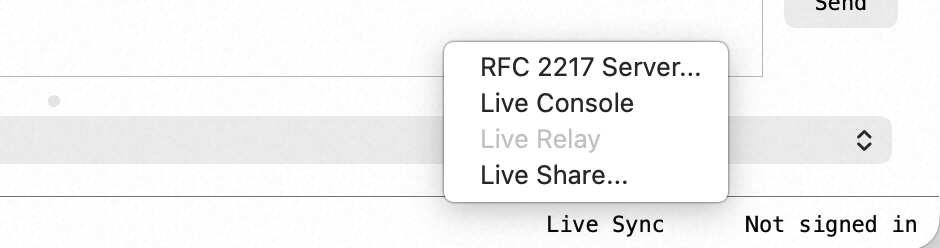
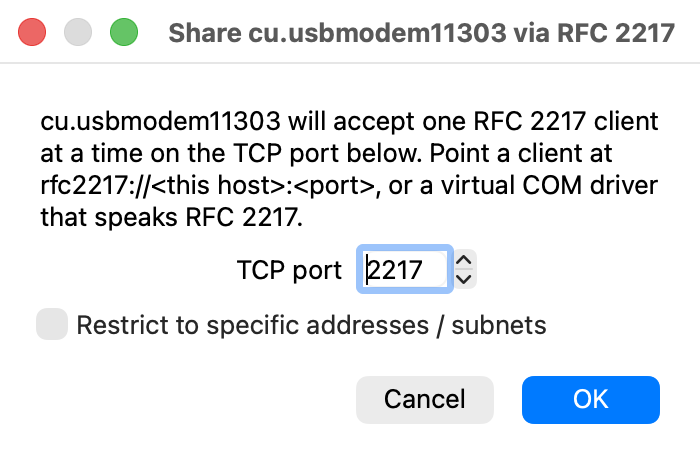
If all you want is "let a remote client drive this port", start here. Select the serial connection, click Live Sync in the status bar and choose RFC 2217 Server…. The dialog asks one question — which TCP port to listen on, with a free one already filled in — and optionally, under Restrict to specific addresses / subnets, who may connect. Everything else takes the same settings the manual path below spells out: both directions, one client at a time, RFC 2217 protocol, the port opened automatically.
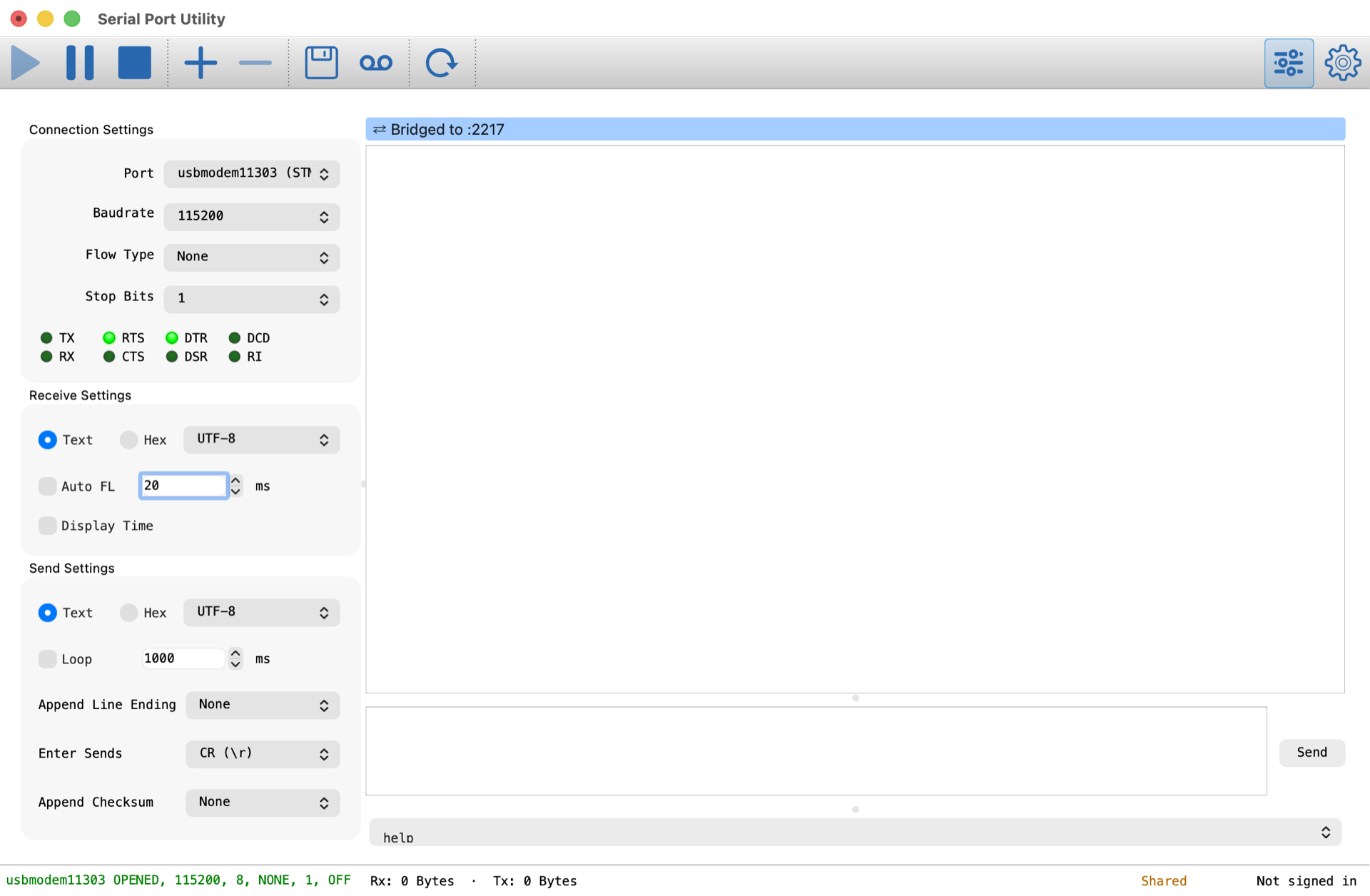
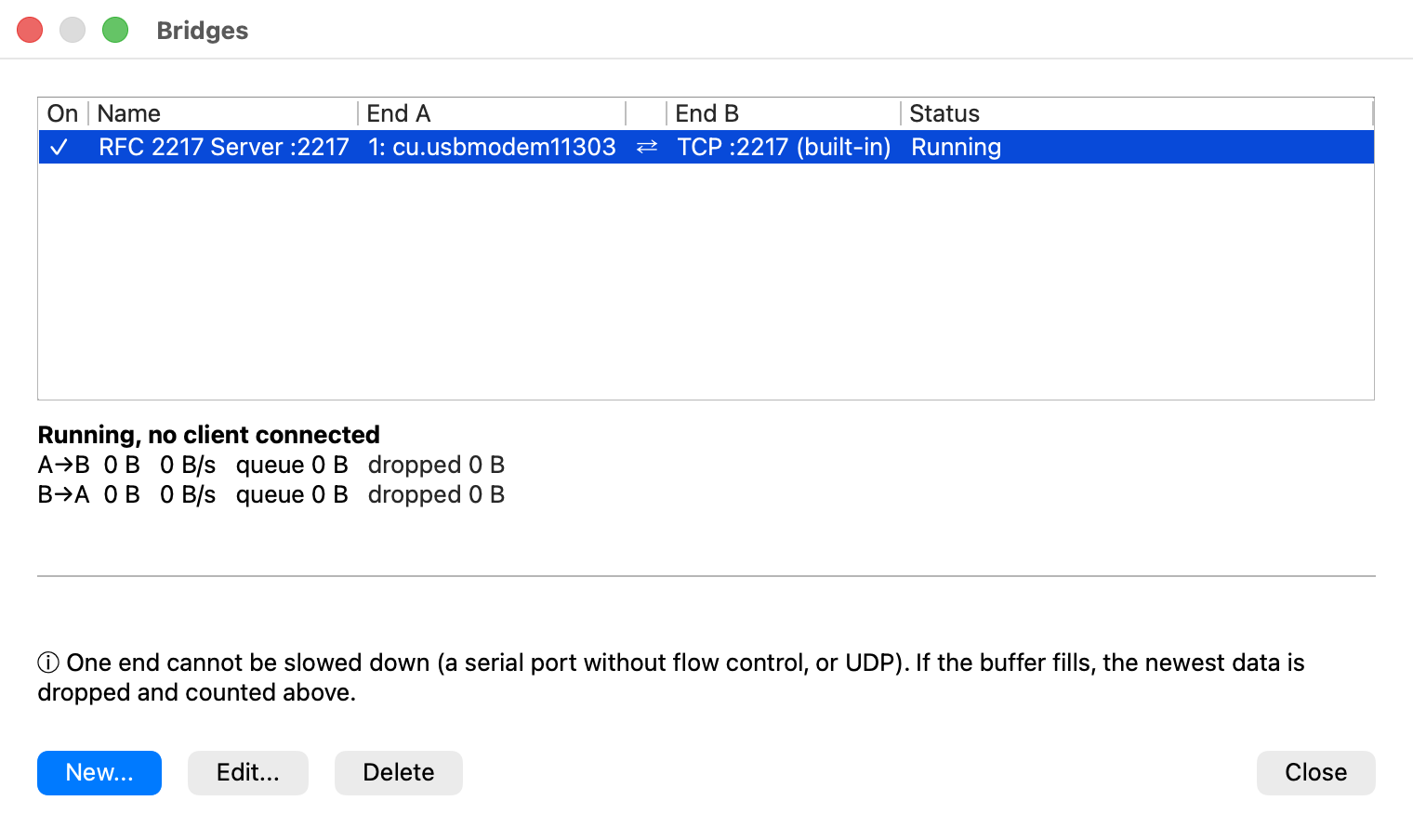
The network end here is a listener built into the bridge rather than a second connection, so it spends no grid slot and does not count against the sixteen-port limit. Under Tools → Bridges… it appears as RFC 2217 Server :2217 with TCP :2217 (built-in) as its second end, and its listening port, traffic and state can be changed or watched like any other link.
While it is running the status bar's Live Sync cell reads Shared, and In use once a client is actually driving the port; if the TCP port turns out to be taken, it reads Not listening and stays that way until you fix it. To stop sharing, click the bridge badge above the receive view and then its close button, or remove the link in the bridge manager.
Quick share is available in every edition — it asks for no account and no Pro licence.
Set it up by hand
Use this path when the port should also be visible as a pane on screen, when you want a bridge that is not exclusive, or when you are editing an existing link.
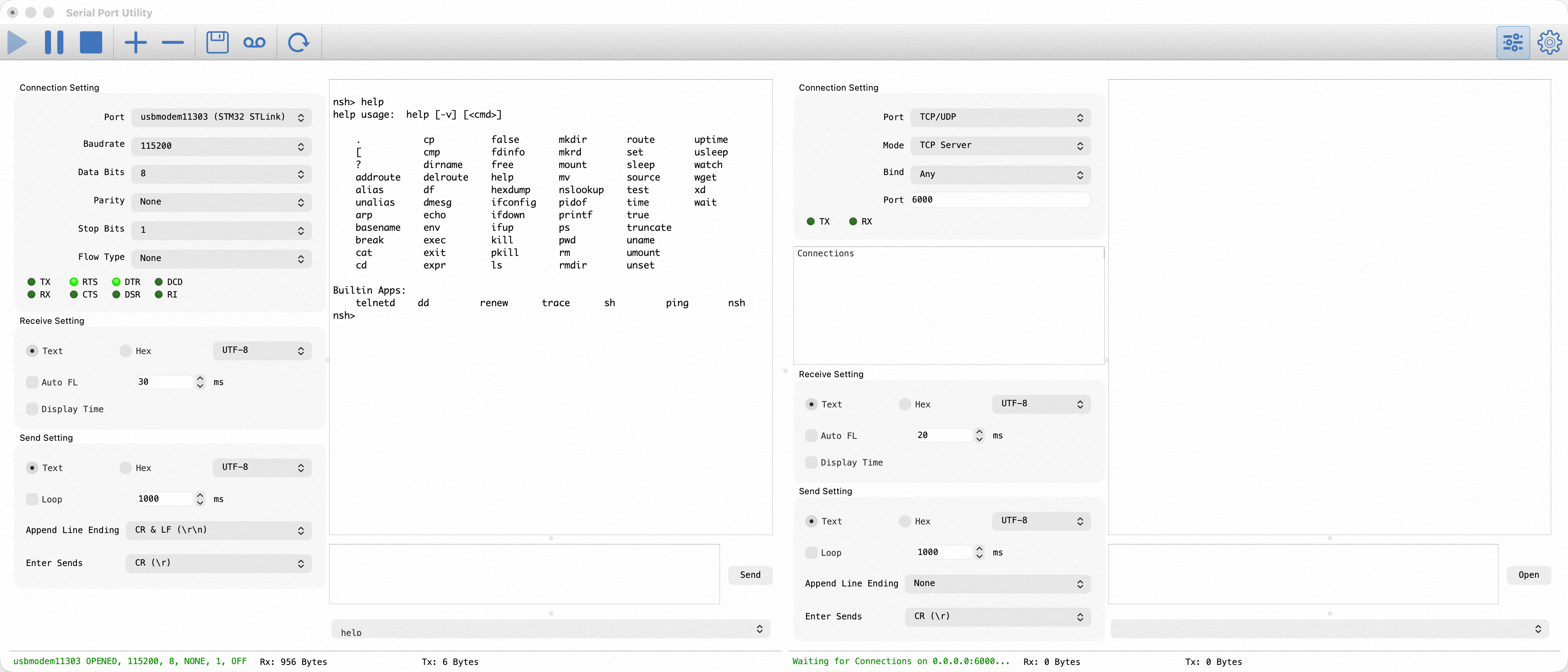
The site needs two connections: one opens the physical serial port and one listens as a TCP Server. An RFC 2217 bridge joins them.
- Configure the first connection for the device's physical serial port and match the parameters in its manual.
- Choose Edit → Add Port for the second connection; pick TCP/UDP, then choose TCP Server.
- For another machine, listen on
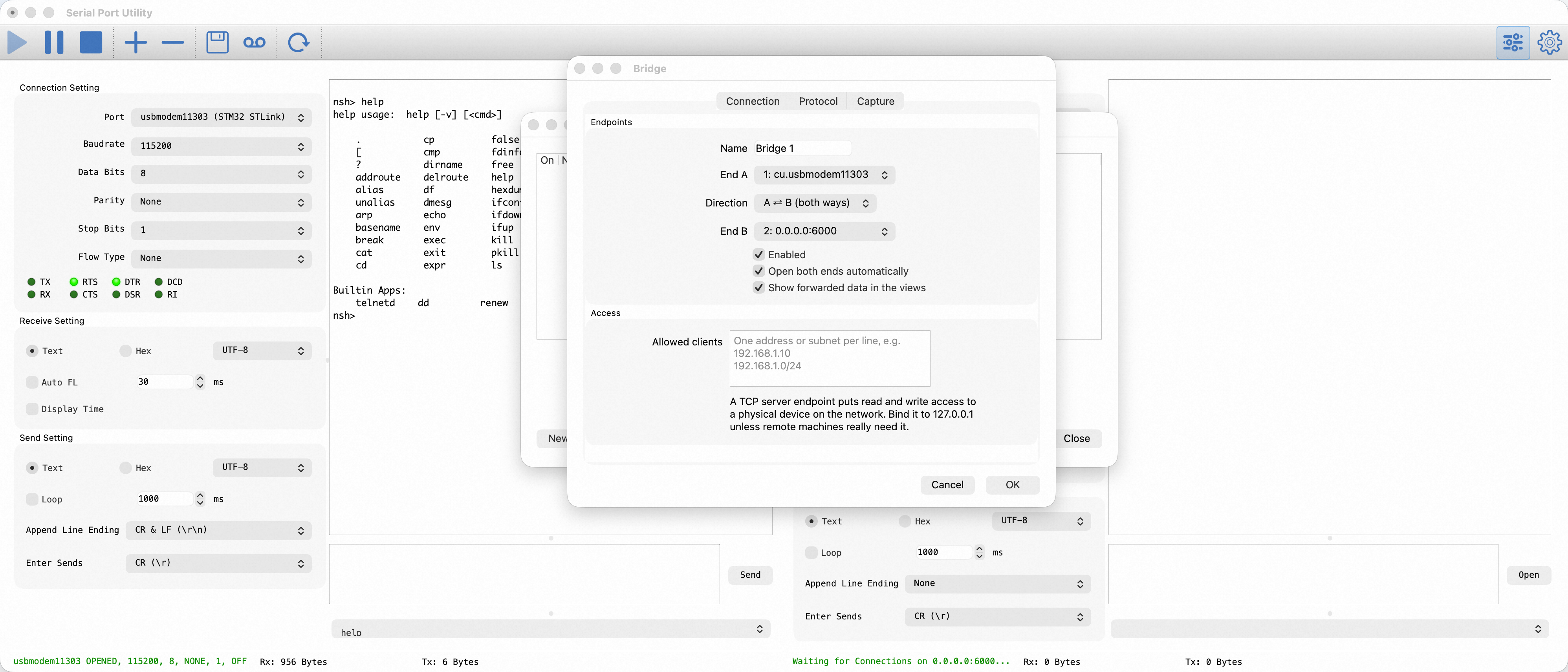
AnyIPv4or the site's LAN address and enter a port such as6000. A server bound to127.0.0.1cannot be reached remotely. - Open Tools → Bridges… → New, choose the serial port and TCP Server as the two ends, and select A ⇄ B (both ways).
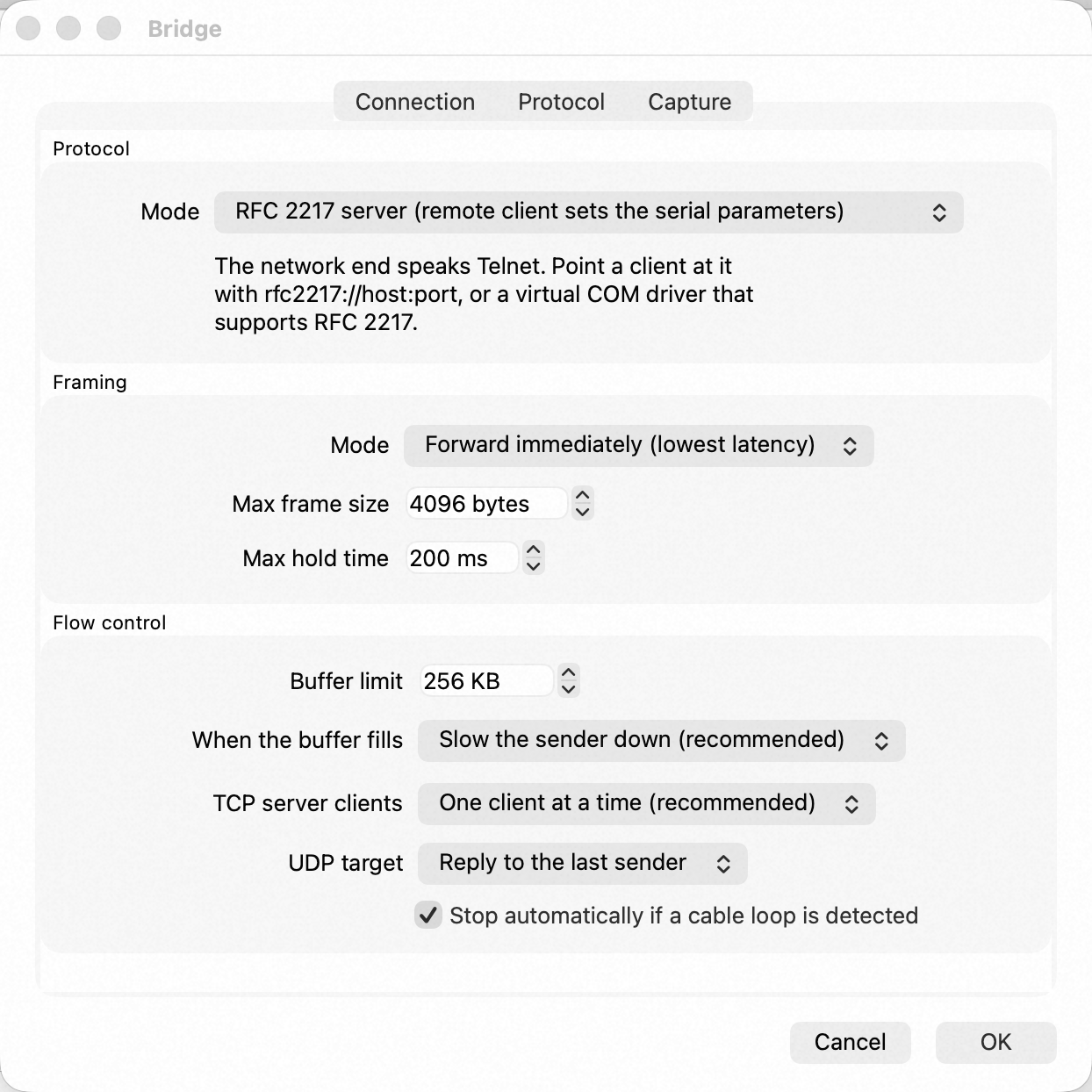
- Enable the bridge and Open both ends automatically. On Protocol, choose RFC 2217 server and keep Forward immediately framing.
- Keep One client at a time.
Access control and security
An empty Allowed clients list does not restrict the source. To restrict access, enter trusted IP addresses or CIDR subnets there, one per line.
RFC 2217 provides no encryption or authentication. Do not expose it directly to an untrusted public network. Prefer a LAN or trusted VPN, and allow the selected port through the host firewall.
Server-side checks
Confirm this end is ready before telling the remote to connect:
- The TCP Server connection shows that it is waiting or connected, on the same address and port you will give the client.
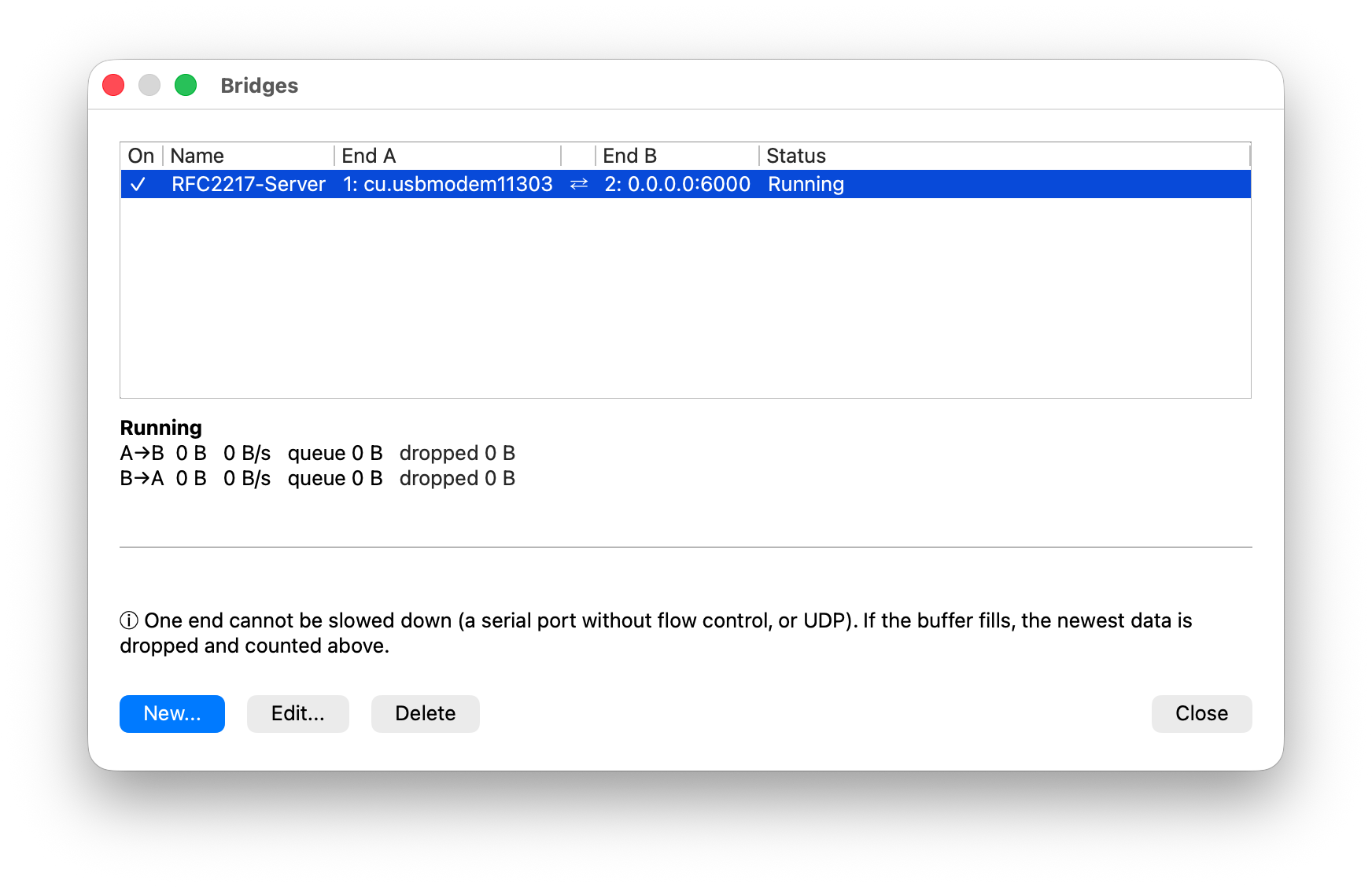
- The bridge manager reports Running, with
droppedstaying at0in both A→B and B→A directions. - The physical serial port is open and the device answers a known command.
For the end that connects to this port, see RFC 2217 client. For end-to-end acceptance and layered troubleshooting across both ends, see Connect directly to a remote serial port with RFC 2217.