On this page
Exporting data and the diagnostic pack
Serial Port Utility can hand data over at three sizes: a few bytes you selected, pasted into firmware or a bug report; everything a port sent and received this session, for Excel or a script; and a diagnostic pack, one .zip with what support needs to understand a problem.
| You want | Use |
|---|---|
| One frame as a C array, a hex dump or hex bytes | Right-click the receive view → Copy Selection As or Save Selection As… |
| Everything a port, or every port, sent and received | File → Export Session… |
| The step-by-step results of recent sequence runs | File → Export Sequence Report… |
| Everything support needs, in one file | Help → Export Diagnostic Pack… |
Nothing on this page uploads anything. Every export is a file on your computer, and you decide who gets it.
Copy or save a selection
Select data in the receive view and right-click it:
- Copy Selection As → C Array copies the bytes as C source you can paste straight into firmware;
- Copy Selection As → Hex Dump copies offset, hex and ASCII columns, 16 bytes a line;
- Copy Selection As → Hex Bytes copies the bytes as
01 03 04 00 0A …; - Save Selection As… writes a
.c,.txtor.binfile.
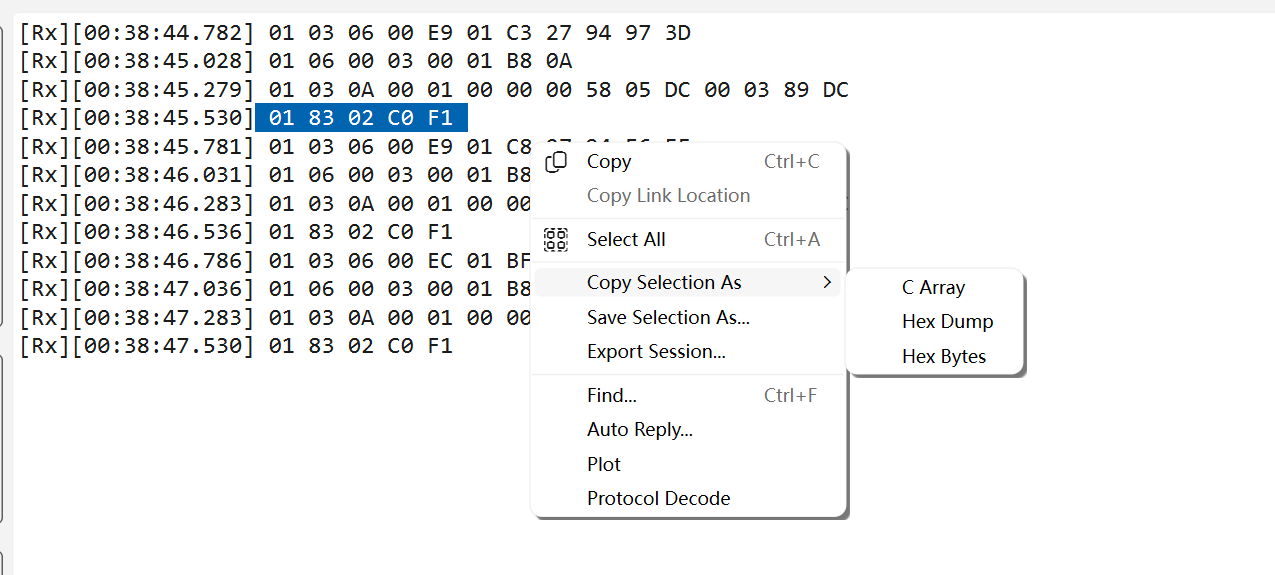
What is exported is the bytes behind the selection, not the text on screen. Timestamps, line breaks the view added and other display text never get in, and a selection can cover both received and sent data.
- Hex view is byte-exact: select exactly the bytes you want.
- Text view is exact for ASCII and UTF-8. For another encoding, or text the view changed on the way in, SPU takes each frame the selection touches as a whole — a few extra bytes rather than a wrong one — and the status bar says so. Switch the receive view to Hex for a byte-exact selection.
- The oldest part of a very long receive view may be older than SPU keeps byte-exact; that part is left out, and the status bar says so.
Copying is limited to 1 MB; for a larger selection, use Save Selection As…. The replay window's views have the same two commands.
A C array with the default options looks like this:
/* Serial Port Utility 6.6.8: COM3 RX 2026-09-25 14:03:07.123, 9 bytes */
#define MODBUS_REPLY_LEN 9
const uint8_t modbus_reply[MODBUS_REPLY_LEN] = {
    0x01, 0x03, 0x04, 0x00, 0x0A, 0x00, 0x14, 0xDA, 0x3E
};
The first line says where the bytes came from: the version, the port, the direction, the time of the first byte and the length. A selection across several frames lists them, for example COM3, 2 frames (RX 14 B, TX 8 B) from …. The same bytes as a hex dump:
00000000 01 03 04 00 0A 00 14 DA 3E |........>|
Save Selection As… opens the Save Selection dialog with a live preview:
- Format: C source (.c, .h), Hex dump (.txt) or Binary (.bin) — the raw bytes, nothing added.
- Array name: a name C would not accept is shown as it will be written ("Written as: …") rather than refused. The default is
spu_data. - Bytes per line: 1 to 32, 12 by default.
- Length: #define NAME_LEN (the default, as above), sizeof comment (
}; /* sizeof(modbus_reply) == 9 */) or None. - Include <stdint.h> and static.
Click Save… and choose where to save. The C source options are remembered, and Copy Selection As → C Array uses them too.
Export a session
Every port keeps a session record: every byte it received or sent this session, plus short notes such as the port opening and closing. It is taken where the data is sent and received, not from the display, so Pause, the Hex or Text view and Clear All Displays do not change it — a session can be exported even when logging was off.
The record is kept in memory while SPU runs. Each port keeps its most recent 8 MB with up to four connections; with more, they share 32 MB, but each port always keeps at least 2 MB. When a port reaches its share, its oldest records go first. For a long test that must be kept in full, use a log file as well.
Choose File → Export Session…, or Export Session… in the receive view's context menu:
- Ports: Focused port (COM3) — the connection that last had the keyboard focus — or All ports (N), merged into one file in time order.
- Format: CSV (Excel), JSON Lines (for scripts and replay) or Text.
- Text column: for CSV, Escaped ASCII or Decode with the port's encoding.
- Data as: for Text, Hex or Text.
- Only data after the last Clear: starts after the last Connection → Clear All Displays (Ctrl+L), each port from its own last clear. It is available once the focused port has been cleared.
The dialog says how many records the focused port holds and since when, and whether older data has already been dropped. Click Export… and choose where to save. The format and the port choice are remembered.
| Format | What you get |
|---|---|
CSV (.csv) |
One row per record: time,t_us,port,dir,peer,bytes,hex,text. UTF-8 with a BOM, so Excel opens it with a double click, Chinese included. A value that starts with =, +, - or @ gets a leading apostrophe, so Excel treats it as text instead of running it as a formula. |
JSON Lines (.jsonl) |
A header line describing the ports, then one JSON object per record with the time in microseconds, the port, the direction (rx, tx or note) and the bytes as hex. For scripts, and the replay window opens it too. |
Text (.txt) |
A short header, then one line per record: time, port, RX / TX, peer and the data. Text is always escaped, so one record stays one line. |
peer is the remote address for a TCP server or UDP connection, where several clients share one port.
Export a sequence report
After the focused port has run a sequence, File → Export Sequence Report… saves its most recent 20 runs, newest first:
- as a text table (
.txt): each run's port, start, duration and result, then one row per step with its start, how long it took, the step, the result and the detail (for example why an Expect failed); - or as JSON (
.json): choose it in the save dialog's file type.
The menu item is greyed out until the focused port has run a sequence.
Diagnostic pack
When something goes wrong, Help → Export Diagnostic Pack… collects what support needs into one .zip. It is never refused and never asks you to upgrade: whoever uses it is asking for help. Export it right away, before closing SPU — the session record is kept only while SPU runs.
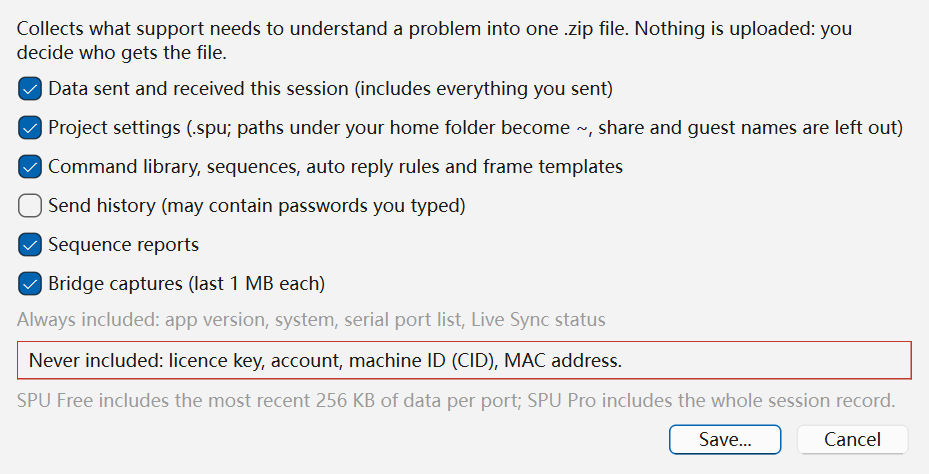
| Check box | Default | What it adds |
|---|---|---|
| Data sent and received this session (includes everything you sent) | On | Each port's session record |
| Project settings (.spu; paths under your home folder become ~, share and guest names are left out) | On | The current project settings, filtered |
| Command library, sequences, auto reply rules and frame templates | On | Those parts of the project settings; without it, sequence steps in the reports are named only by kind and number |
| Send history (may contain passwords you typed) | Off, every time the dialog opens | Each port's send history, inside the project settings |
| Sequence reports | On | Each port's recent sequence runs |
| Bridge captures (last 1 MB each) | On | The end of each bridge's capture file |
Always included: app version, system, serial port list and Live Sync status. The other choices are remembered. Click Save…, choose where to save, and when the pack is written, Show in Folder takes you to it.
Inside the .zip:
| Entry | Contents |
|---|---|
README.txt |
What is inside, what never is, and any data limits, in English and Chinese |
app/environment.json |
App version and build, Qt version, operating system, CPU architecture, language, screen scaling, Free or Pro, signed in or not, number of ports |
app/preferences.json |
Display and connection preferences, read from a fixed list |
app/serial-ports.json |
The serial ports this computer listed: name, description, maker, VID/PID |
app/live-sync.json |
Whether RFC 2217, Live Console, Live Relay and Live Share were on |
project/project.spu |
The current project settings, filtered |
ports/01-COM3/ … |
For each port: port.json (settings, state, counters), session.jsonl (the data sent and received), session.txt (the most recent 1 MB as hex text), sequences.txt and sequences.json |
bridges/ |
Bridge settings and counters, and the end of each capture file |
manifest.json |
The same list for programs, with sizes and the options you chose |
Before you send it, open README.txt or session.txt with any text editor to see exactly what you are handing over.
What never goes in
The pack is built from a whitelist, not by removing things from everything: each file is assembled field by field, and a setting SPU does not know to be safe is left out. These never go in:
- the licence key and activation data;
- your account: ID, email, name and sign-in tokens;
- this computer's machine ID (CID), MAC address and CPU ID;
- your user name and computer name.
As a second line, SPU erases the CID, licence key, account email and MAC address wherever they would appear in the text of the pack, and paths under your home folder are shown as ~.
Two things to know before you send one:
- The data includes everything you sent. If you typed a password or a key to a device, clear the first check box, or export a session of the port that matters instead.
- Serial port names are kept, because support needs them. On macOS a USB adapter's port name can include its serial number, and a Bluetooth serial port's name the name of the device.
Free and SPU Pro
Selections and sequence reports are free, with no limits. In Free:
- Export Session writes the most recent 500 records of each port. The status bar says so every time, the JSON Lines header and the text export's header say which ports were cut, and the first time in a session a short note explains it. The file is written either way.
- A diagnostic pack includes the most recent 256 KB of data per port, with no limit on how often you export one. README.txt says which ports were cut. Bridge captures carry their last 1 MB in both editions.
Nothing is counted: every export starts again from these limits. SPU Pro exports the whole session record, in both Export Session and the diagnostic pack.