On this page
Two things called registration: the account and the key
"Registering" Serial Port Utility is two separate things: an Alithon account and a license key. The account is free; it signs you in to the application, activates keys and unlocks the Live Sync cloud features. The key decides whether this computer runs Free or Pro. Local serial debugging needs neither, and Free has no time limit. See Free and Pro.
Once you have bought Pro, this order takes the fewest steps:
- Register an Alithon account in the application, with the same email you entered at checkout. Skip this if you already have one.
- Sign in. A key that was ticked Bind the license to my Alithon account at checkout activates this computer as you sign in; there is nothing to type.
- For an unbound key, open Help > Licence Management and paste and activate it.
- An Enterprise computer with no internet access uses offline activation.
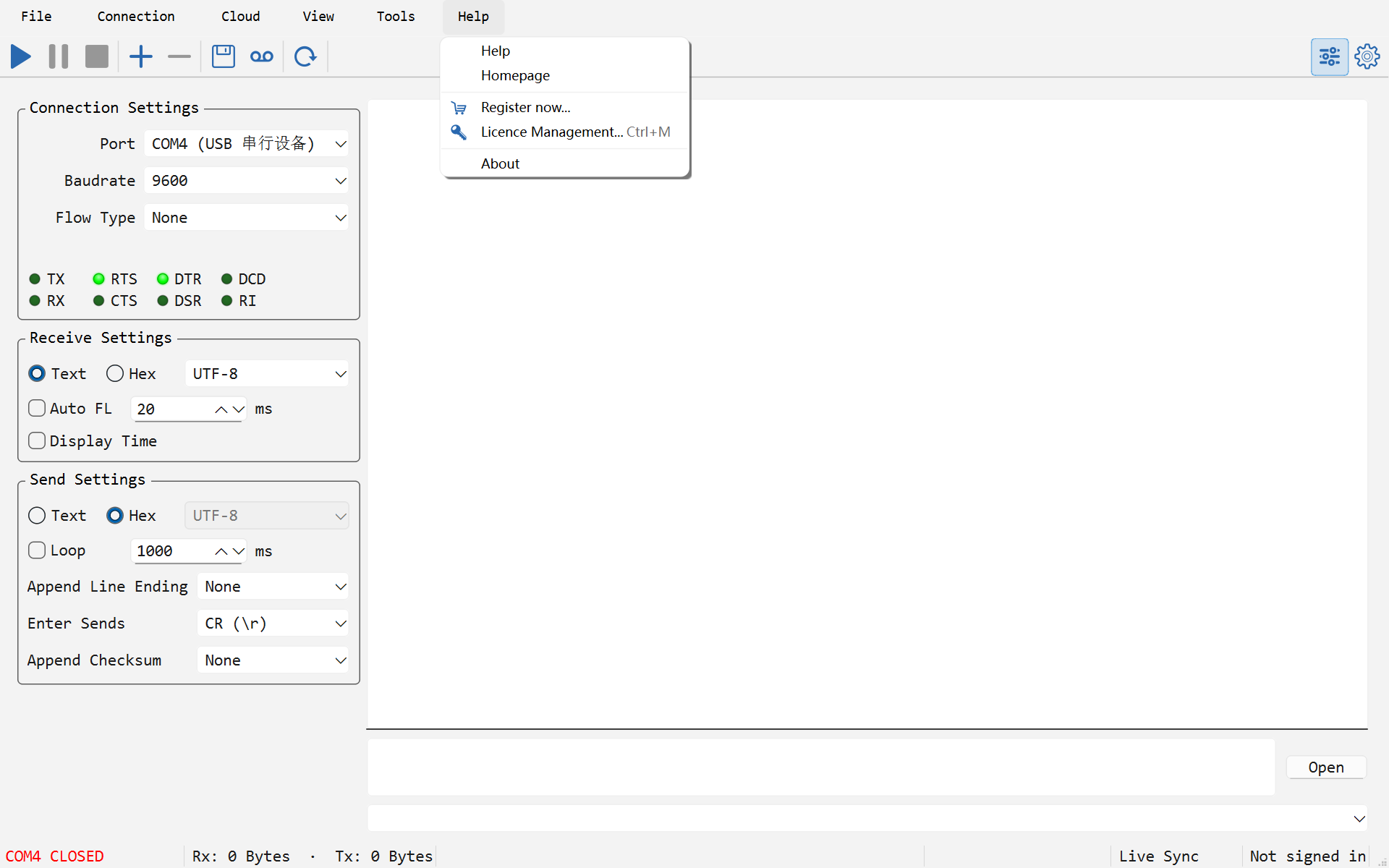
Every door is on the menu bar: Help > Register now... opens the purchase page, Help > Licence Management... (Ctrl+M) opens the license window, and the account's sign-in and registration live under Cloud > Sign In....
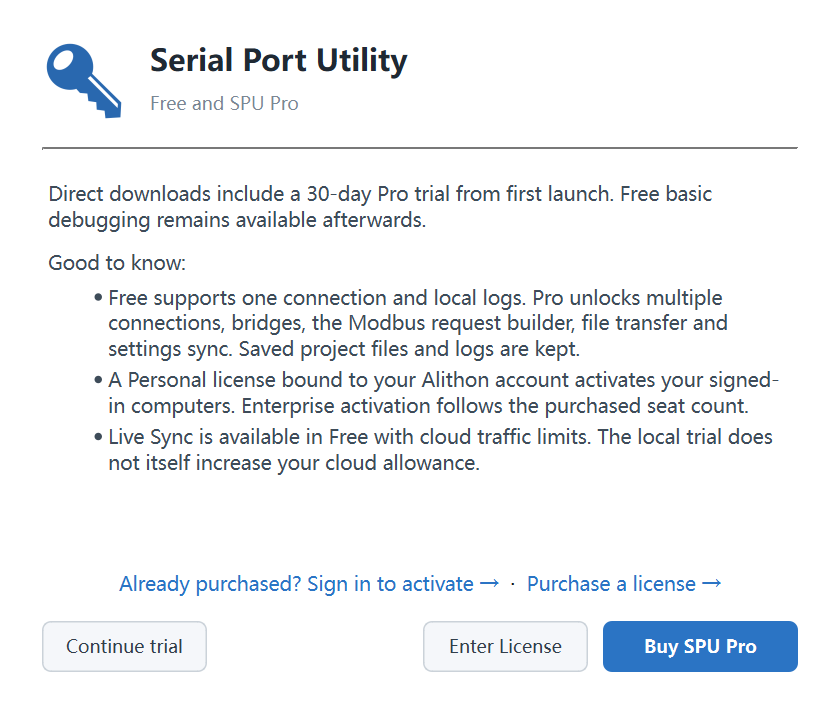
When the "Free and SPU Pro" window appears
A computer running Free sees this window at most once a day, starting a week after installation; activating a license stops it. It locks nothing. Its exits:
- Buy SPU Pro opens the pricing page in your browser.
- Continue with Free closes the window and changes nothing.
- Learn about SPU Pro · no reminders for 3 days opens the pricing page and keeps the window away for three days.
- Enter License opens the License Management window directly.
- Already purchased? Sign in to activate opens the sign-in window. If your key is bound to your account, this window closes on its own once you are signed in and the computer activates.
In the Mac App Store build the same window shows the subscription instead, with Subscribe and Restore Purchases; a key bought on the website goes in through its Enter License Key link.
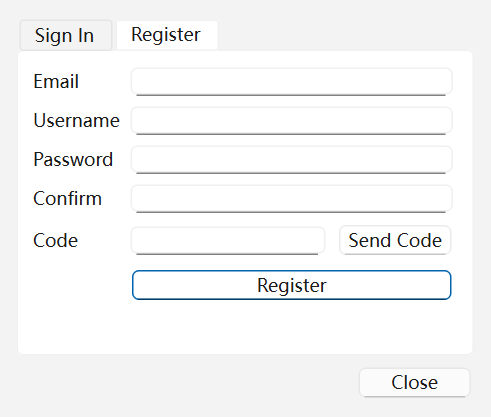
Register an Alithon account
Open Cloud > Sign In... and switch to the Register tab:
- Enter your email, a username and a password, then type the password again to confirm.
- Click Send Code and copy the 6-digit code from the email into the Code field. Check the spam folder if nothing arrives.
- Click Register. Then sign in on the Sign In tab with the same email and password.
Use the email you entered at checkout. A key ticked for binding at checkout is reserved for that address; register with the same one and the key becomes yours automatically, so signing in activates the computer. Register with a different address and the key does not follow -- it can only be bound by hand later from Dashboard > Licenses.
If registering inside the application is inconvenient, register on the website instead; it is the same account.
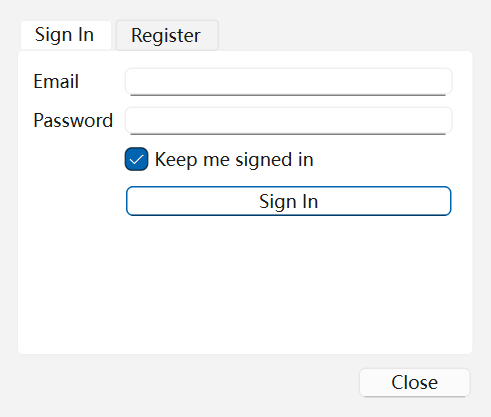
Sign in, and let the key activate on its own
On the Sign In tab enter your email and password; with Keep me signed in ticked, the next launch does not ask again. Once you are signed in:
- The status bar's bottom-right cell changes from Not signed in to your account. Click it for the sync state and recent messages; signing out is Cloud > Sign Out.
- A key already bound to the account activates this computer on its own, and the status bar reports "License … activated for this computer." With several bound keys, pick one through Licence Management > My licenses....
- If an unbound key was installed on this computer earlier, the application asks "Bind license … to …?". Bind to my account makes it follow the account; Not now leaves it on this computer, and the same key is not asked about again.
- Signing out releases any bound key on this computer; signing back in restores it. Unbound keys are untouched. Details are in Licenses and your account.
Enter a license key
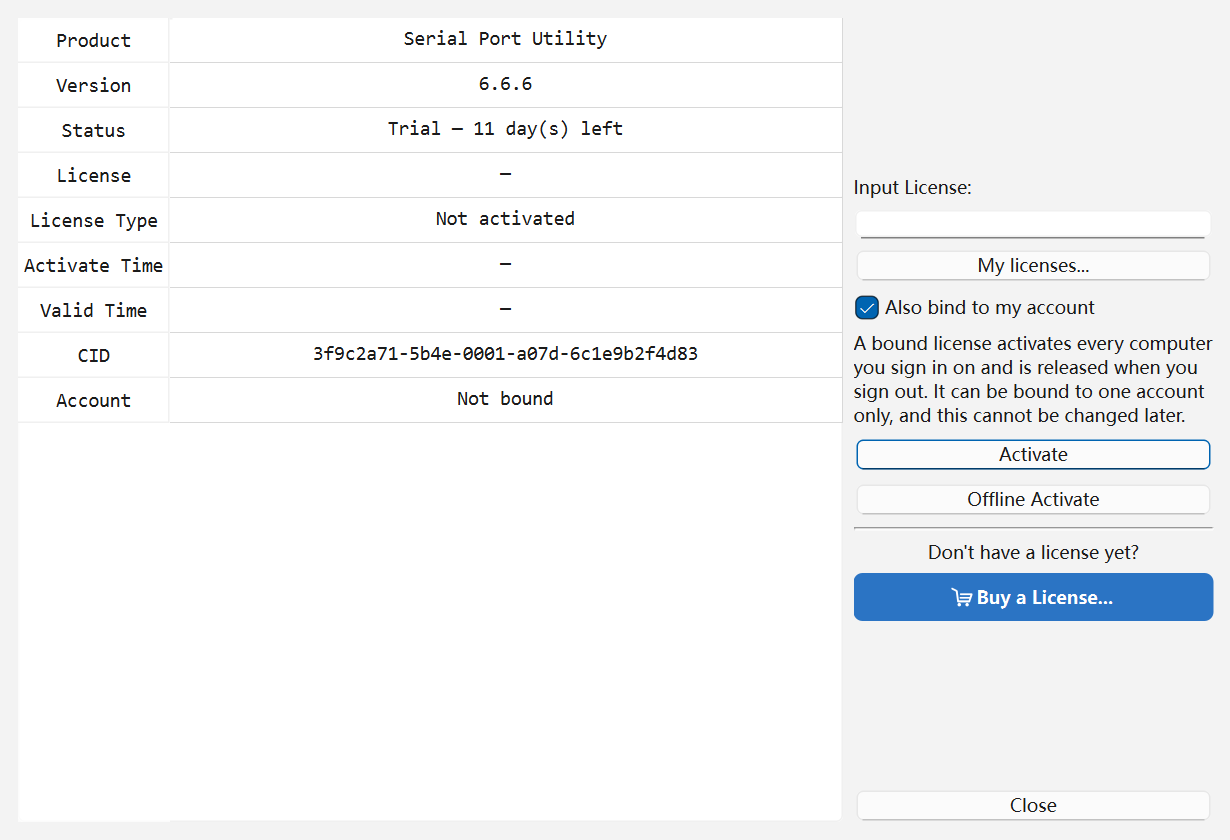
Open Help > Licence Management... (Ctrl+M). The table on the left is this computer's current state: the Status row reads "Not activated", "Activated" or "Expired", CID is this computer's device identifier, and the Account row says whether the key has settled on an account. The right-hand side is the activation itself:
- Paste the key from the delivery email into Input License. A key is 25 characters in five groups of five; case and hyphens do not matter, the application tidies it into the standard form.
- If the key is already bound to your account, click My licenses... and pick it from the list instead of typing.
- Decide about Also bind to my account. Ticked, the key follows the account: every computer you sign in on activates, and signing out releases it. Unticked, the key stays on this computer: a Personal key then runs on up to three computers at once. An Enterprise key is limited by its seats either way, one seat per computer. A key binds to one account only and this cannot be changed later, so ticking it is the right default for a Personal key; for an Enterprise key it depends on how the company hands out its seats.
- Click Activate. Activation is an account operation: if you are not signed in yet, the sign-in window opens first. On success the application reports "License Activate Success!", and the table refreshes to Activated with the activation and expiry times.
When activation fails, the window says why. "That does not look like a license key" is a length problem, usually a missing group. "This license key is not valid" failed the checksum: look for O against 0 and I against 1. A network timeout wants a different network. A device-limit message means releasing an older computer from Dashboard > Licenses. Anything else is covered under payment and activation help.
Offline activation (Enterprise)
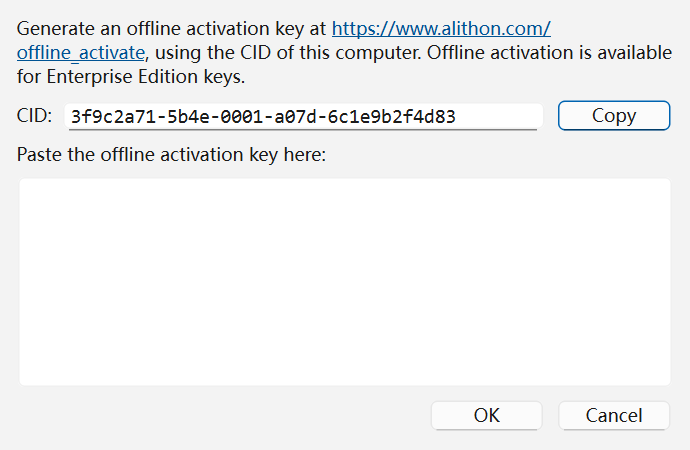
Only Enterprise keys (no longer sold; existing keys keep working) support offline activation, for site computers that cannot reach the internet:
- On the target computer, open Licence Management > Offline Activate and click Copy to take its CID.
- On any computer with internet access, open offline activation, enter that CID and the Enterprise key, and generate the offline activation key.
- Back on the target computer, paste the offline activation key into the text box and click OK.
The CID must be the target computer's own. A key generated from the internet-connected computer's CID is invalid on the target.
After activation
- Checking the state: open Licence Management at any time; the Status, Valid Time and Account rows are the answer. After renewing an expiring key, activate it again.
- Moving to another computer: a bound key needs only a sign-in there. An unbound Personal key is entered again on the new computer, live on up to three at once; an Enterprise key takes one seat per computer. When they are all taken, release one from Dashboard > Licenses.
- Removing a key: once activated, Licence Management gains a Remove License button that takes the key off this computer. The key itself stays valid and can be activated elsewhere.
- App Store build: on a new Mac, use Restore Purchases with the same Apple Account; a website key goes in through Enter License Key in the subscription window.
- Wanting a refund: an order whose keys have not been activated, paid within the last 14 days, can be refunded from the account center; see Request a refund. Activation ends self-service refunds, so hold off activating while you are still deciding.
- Stuck: start with payment and activation help, and bring the order number, checkout email and CID when contacting support.